
Testing
Find test data to execute test transactions
Access Token API (Test Credentials)
To send a payment you are requested to use OAuth2 authentication and get a token first, using the Oauth2 client credentials flow.
| Key | Value | Postman Key* |
|---|---|---|
| merchantName | epi_payment_sandbox_merchant | Client ID |
| merchantId | cf573e99-6ecc-4ed1-9ce8-c3ed20bdef00 | - |
| merchantSecret | P5WrSmMKxCOncS8Vkq30vcXvH6tg5zYE | Client Secret |
| tokenUrl | https://keycloak-apps-test.public.apps.stg.vrpintegration.dev/auth/realms/EPI/protocol/openid-connect/token | Access Token URL |
| Client Credentials | Grant type | |
| Send as Basic Auth header | Client Authentication |
*) Key mapping for Postman. When using a different API testing tool, the key mapping may vary.
Request API
Using our reference make sure, all nessasary fields are implemented. Please use the following specific parameters for testing.
| fieldname | Value |
|---|---|
merchantDetails.Id | any |
Please avoid including any personal or company information in your request, as it will be publicly visible.Enterprise Accounts: Request a dedicated test account through your key account manager.
Authentication of a payment
Only for testing purposes, a web based authentication is provided instead of an authentication by an app. Please follow the steps to authenticate the payment request.
Getting the payment code
After redirecting the customer to the wero authentication page click on "wero code" on the buttom page to receive the authentication code. The QR-Code is not working in test environment.
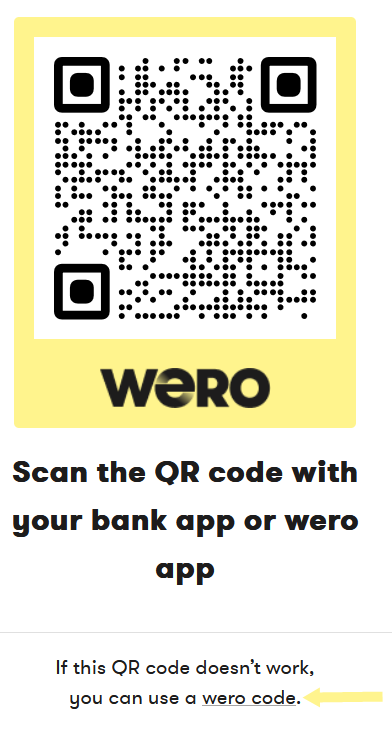
Click wero code show the authentication code called short id.
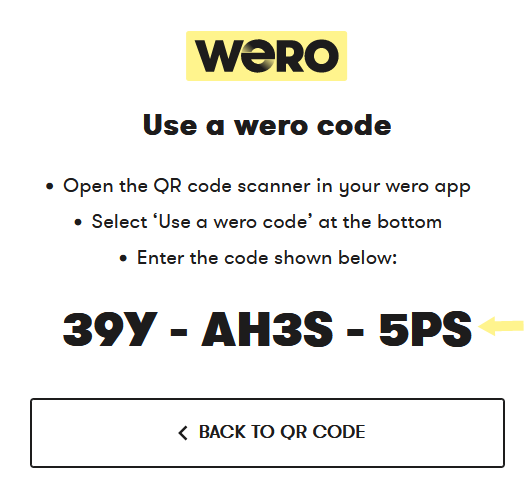
Click on the code to copy it to clipboard
The wero code is valid for 10 minutes and will then time out.
Authenticate using the test kit
It is now also possible to create your own wallet for testing purposes. For details see [Creating your own test wallet]
There has been a dedicated consumer (WERO HERO) created along with its wero wallet, you can use for testing.
- Open the test kit for the test consumer WERO HERO:
- Paste the wero code in the field for "short id" like 39YAH3S5PS.

- The page will automatically load the code and display all details from the initial request.
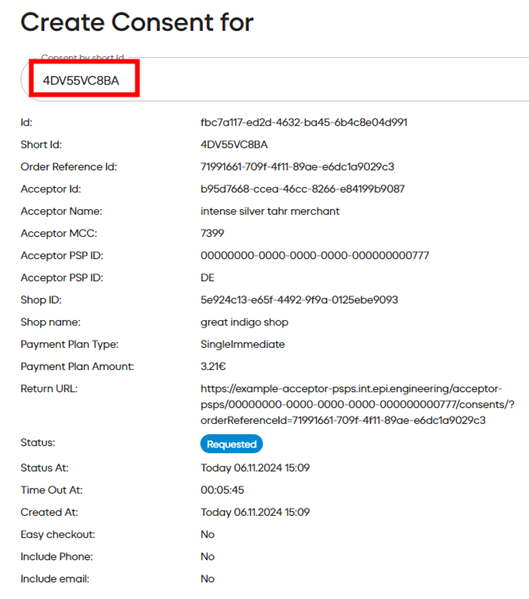
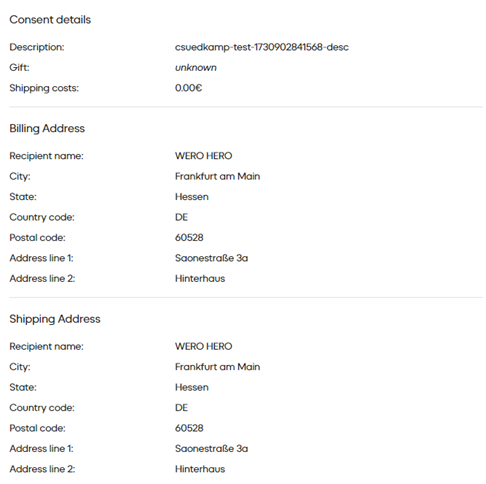
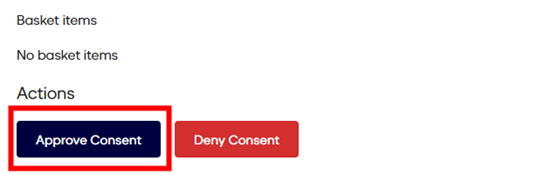
- Approve or Deny the initial request by clicking either on "Approve Consent" or "Deny Consent" to finalize the transaction from the shopper's side.
Creating your own test wallet
By giving merchants the option to use their own, more anonymous wallet during onboarding, it is possible to set up such a wallet by following the steps below:
- click on https://example-consumer-psps.werouat.eu/consumer-psps/00000000-0000-0000-0000-000000001080/consumers
- if you don't have consumer already, click on "Create consumer" and enter consumer details
- click on "Accounts" (sidebar)
- click on "Create Account"
- click on the dice icon to randomize the IBAN and enter a product name
- link the newly created consumer to the account by clicking on the "Select Consumer" button and search for your consumer.
- click on "Wallets" (sidebar)
- click on "Create Wallet"
- enter the name with which the wallet will be displayed
- link the consumer and consumer account you want to use with this wallet
After clicking on "Create Wallet" the setup is complete.
Annotation: As it is not possible to top up the wallet, please be advised to check the available balance of the test wallet frequently to avoid errors due to unsufficient funds. If you used up the given amount, you need to create a new wallet.
Updated 6 months ago